Behind the Scenes: Why Applications Must Be Built Specifically for Each Operating System?

Have you ever wondered why .exe files from Windows can’t be opened on a MacBook, or why Mac applications can’t run on Linux? The simple answer might be: “Well, they’re different OSes!”. But for those of us who want to dig deeper, the answer is far more complex than just different device brands.
Many people think this is just a processor issue (like Intel vs Apple Silicon). However, even if two computers use exactly the same CPU, applications from one OS still can’t run on another OS. Why? Let’s break it down based on the explanation from the Core Dumped channel below.
1. Digital Security Guard: User Mode vs Kernel Mode
Modern Operating Systems (OS) are designed to run many applications simultaneously. For security, the CPU has two operating modes:
- User Mode: Our applications (like Browser or Game) run here. Instructions are limited to mathematical calculations or moving data in memory [02:31].
- Kernel Mode: The “Privileged” mode owned by the OS. Only in this mode can the CPU directly access hardware (such as writing data to disk or sending messages over the internet) [02:09].
The problem is, applications in User Mode don’t have the key to enter Kernel Mode. This is where “System Calls” come into play.
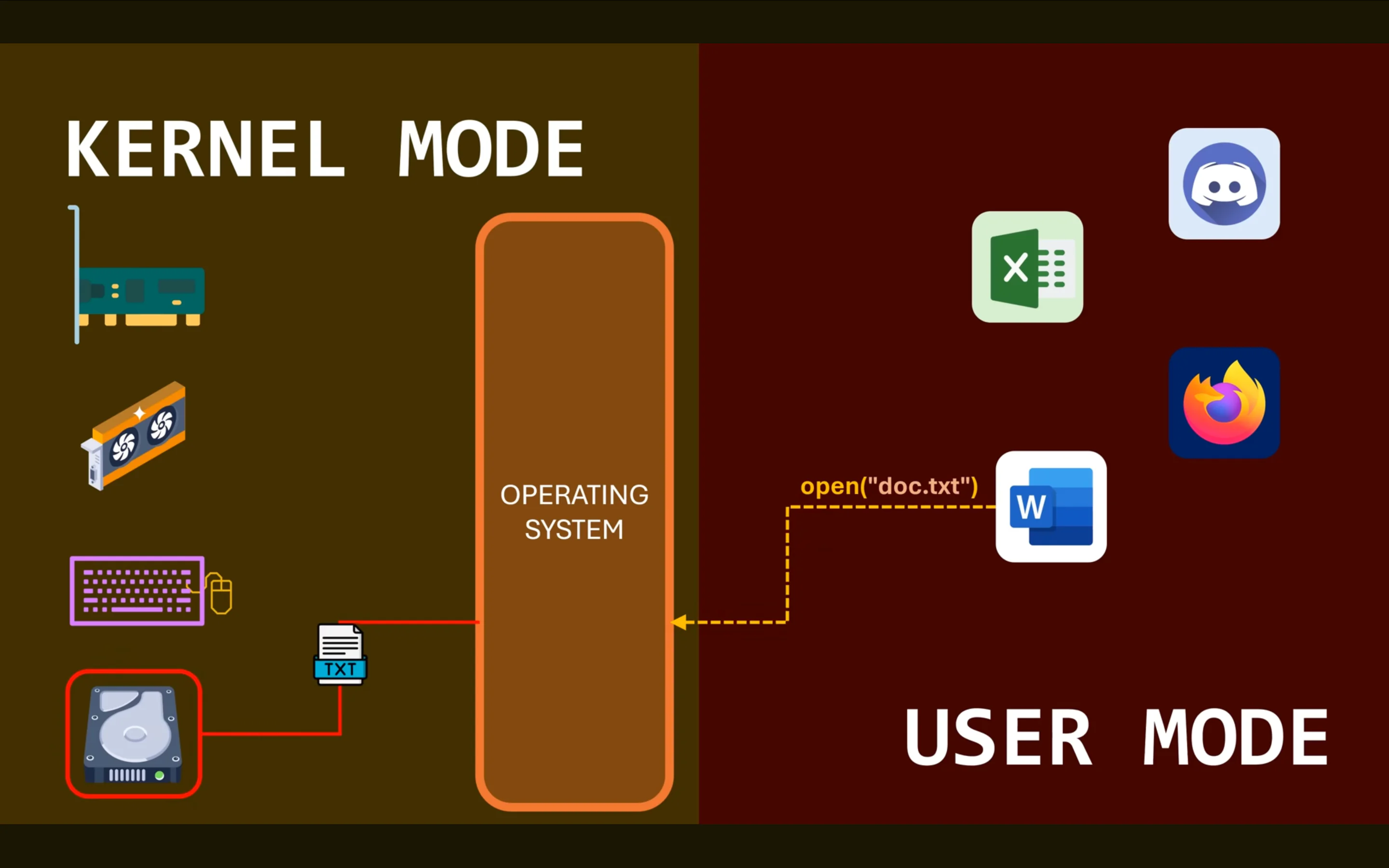
How Operating Systems manage interaction with Kernel Mode and User Mode
Interesting Fact: The transition from User Mode to Kernel Mode is not a “free” process. Every time an application makes a System Call, the CPU must perform a context switch — a process that takes time because it must save the application state, change privilege level, and call kernel code. This is one reason why too many System Calls can slow down an application.
2. System Calls: Different Languages
Applications can’t touch hardware. If an application wants to open a file, it must “ask” the OS through a System Call [03:18].
Think of the OS as a restaurant server. The problem is:
- Windows uses language “A” to order coffee (for example:
CreateProcess). - Unix (Linux/Mac) uses language “B” (for example:
Forkfollowed byExec) [05:04].
Even if the CPU is the same, a Windows application will give instructions that Linux considers “alien language”. The result? Crash or undefined behavior [06:23].
This difference is not just in function names, but also in their semantics. For example, Windows CreateProcess is one function that does many things at once, while Unix breaks it down into fork() (duplicating the process) and exec() (replacing the process image). The design philosophy is fundamentally different [05:04].

Example Comparison of Linux vs Windows System Calls
3. ABI (Application Binary Interface): Strict Rules of Engagement
It’s not just different languages, but the “etiquette” rules are also different. This is called ABI.
ABI defines how applications and OS “communicate” at the binary level. This includes:
- Calling convention — which registers are used for parameters, which registers for return values
- Stack layout — how data is arranged on the stack during function calls
- Data structure alignment — how data structures are aligned in memory
- Name mangling — how function names are encoded for linking
For example, when an application requests a service from the OS, it must place data on a specific “table” (register). Linux OS might expect data to be placed on table number 1, while Windows on table number 5 [09:11]. If the application places data incorrectly, the OS won’t understand what is requested, even if the goal is the same [10:08].
Practical Example: In x86-64 Linux, the first System Call parameter is usually placed in the
raxregister, while in Windows x64, the first parameter is placed in thercxregister. Even though both use the same CPU architecture (x86-64), their ABIs are different, so code compiled for one OS won’t work on another OS.
4. File Format: Different “Packaging”
Each OS has a unique way of packaging its machine code into executable files:
- Windows uses the PE (Portable Executable) format.
- Linux uses the ELF (Executable and Linkable Format) format [11:52].
It’s like, the content might be the same book, but one is wrapped in a plastic-sealed cardboard box, the other is wrapped in an iron can. If the OS doesn’t know how to open the “package”, it will never be able to run its contents [11:23].
This executable file format not only determines structure, but also stores important information such as:
- Entry point — where the code should start executing
- Section headers — how memory should be allocated (code, data, stack)
- Import/Export tables — what libraries are needed and what functions are exported
- Metadata — information about compiler, version, and target platform
Without this information, the OS doesn’t know how to “unpack” and run the machine code inside [11:52].
Dynamic vs Static Linking: The executable format also determines how applications link external libraries. Static linking copies all library code into the executable, making the file larger but more portable. Dynamic linking stores references to external libraries (like
.dllin Windows or.soin Linux), making the file smaller but requiring those libraries to be available on the system. The difference in library formats (.dllvs.so) is also one reason why applications can’t be directly moved between OSes.
5. Virtual Machine & Interpreter
Then why can Java or JavaScript (Node.js) run anywhere? Because they use a “translator” in between.
These languages are not compiled directly to machine code (native code), but compiled to bytecode — a kind of “universal language” that can be understood by a Virtual Machine [12:07]. The Virtual Machine (like JVM for Java, or V8 for JavaScript) acts as a “translator” that bridges between bytecode and the local OS.
How it works:
- Source code (e.g., Java) is compiled into bytecode that is the same on all platforms.
- A Virtual Machine that is OS-specific reads this bytecode and translates it to System Calls appropriate for the OS it’s running on.
- So, one
.classfile (Java) or one JavaScript file can run on Windows, Mac, and Linux — as long as there’s the right Virtual Machine for each OS.
This is like having a translator fluent in many languages. The application code speaks in “bytecode language”, then the Virtual Machine translates it to the “System Call language” understood by the local OS. As long as there’s a translator (VM), the code can “travel the world” to various OSes without needing to be recompiled.
Of course, there’s a trade-off: applications running on VMs are usually slower than native applications because there’s an “additional layer” that must be processed. But for many cases, the portability gained is worth the slight performance decrease.

Example of Java Virtual Machine that enables one Source Code to run anywhere
Technical Note: Modern VMs like JVM and V8 use Just-In-Time (JIT) Compilation techniques to address performance issues. Bytecode is not only interpreted, but also compiled to native code at runtime. This allows VM applications to approach native application performance, while still maintaining portability.
6. Compatibility Layer: “Translator” for Native Applications
What if we want to run Windows applications on Linux, or vice versa? The solution is a Compatibility Layer — a kind of “translator” that translates System Calls from one OS to another.
The most famous example is Wine (Wine Is Not an Emulator) which allows Windows applications to run on Linux and macOS. Wine works by:
- Translating Windows System Calls to equivalent Unix System Calls
- Emulating PE file format into a format that can be understood by the host OS
- Providing Windows library implementations (like DirectX, Win32 API) using native Unix libraries
This process is not perfect because some Windows System Calls don’t have direct equivalents in Unix, or have different behaviors. That’s why not all Windows applications can run perfectly on Wine.
Proton (from Valve) is a fork of Wine optimized specifically for games, with additional support for DirectX 11/12 through Vulkan. This allows thousands of Windows games to run on Linux with performance nearly equivalent to Windows native.
Interesting Fact: Wine is not an emulator in the traditional sense. Wine doesn’t run Windows CPU instructions on top of Linux CPU. Instead, Wine runs Windows machine code directly on the host CPU, but translates Windows System Calls to Unix System Calls [14:02]. This is why Wine can be faster than a VM, but also why not all Windows applications can run — some applications depend on specific Windows behaviors that are difficult to emulate.
7. Container & Virtualization: Modern Solutions
Other modern solutions are using containerization (like Docker) or virtualization (like VirtualBox, VMware).
Containers work by packaging applications along with all their dependencies (libraries, runtime, configuration) in one package that can run on various OSes — as long as the OS has a container runtime (like Docker Engine). Containers use the kernel from the host OS, so applications inside containers still must be compatible with the host OS System Calls.
Virtual Machines (VM) are “heavier” because they run a complete OS inside the host OS. VMs have their own kernel, so applications inside VMs can use System Calls from the guest OS. The trade-off is greater overhead because the entire OS must be run.
Both approaches allow applications to run on various platforms, but in different ways: containers for applications already compatible with the host OS, VMs for applications that need a different OS.
Conclusion
Building cross-platform applications is difficult because we’re dealing with fundamentally different OS foundations. As developers, understanding System Calls and ABI makes us realize that Software is not just lines of code, but a long dialogue between applications, operating systems, and hardware.
Comments & Discussion